[:es]En esta entrada os enseñaremos a utilizar las funcionalidades básicas de QCAD para poder realizar diseños 2D sencillos orientados a la fabricación por corte por láser.
Introducción
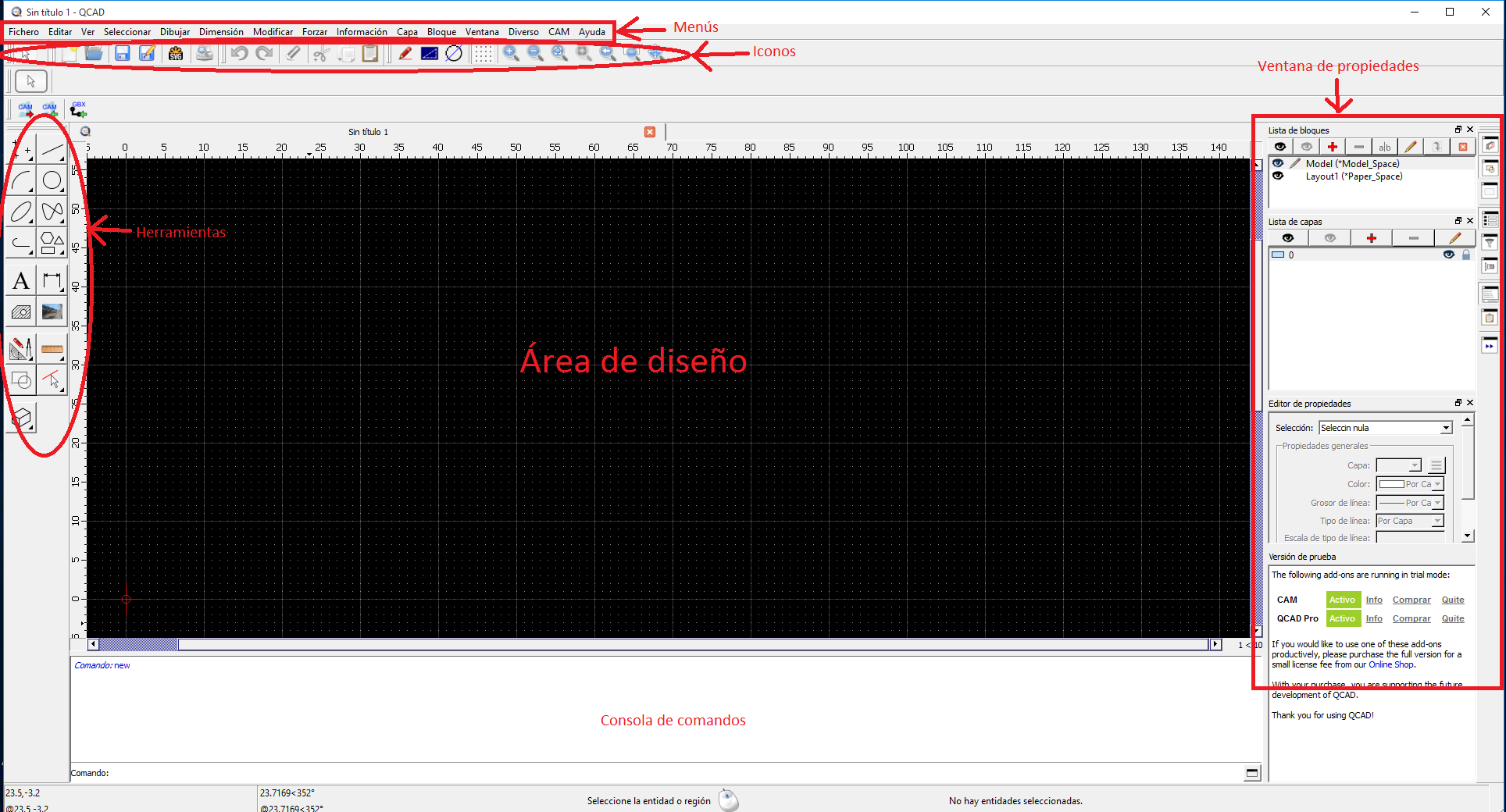
QCAD como cualquier programa de diseño CAD dispone de un conjunto de menús en la parte superior, con una barra de iconos justo debajo de los menús, una barra de herramientas a la izquierda y una serie de ventanas de propiedades en la parte derecha, una consola de comandos en la parte inferior y la ventana con el área de diseño justo en el centro de la aplicación.
Manuales de referencia
Esta entrada no pretende ser un manual completo de QCAD, ya que esto requiere de documentación muy costosa de mantener y sólo empresas especializadas pueden dedicar los recursos a ello. Un buen lugar con mucha información técnica lo podéis encontrar aquí (versión 2.2). Si este enlace no os funcionara, es probable que hayan actualizado la versión y por tanto deberías ir directamente a https://www.ribbonsoft.com/en/qcad-documentation con la documentación actualizada (en inglés).
Capas
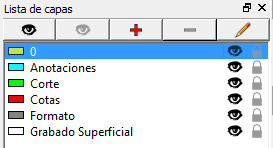
Los diseños CAD están organizados en varias capas de diseño. Las capas permiten organizar la información de forma que podemos fácilmente activar o desactivar la visibilidad de unas capas u otras según convenga. En la ventana de propiedades, existe una ventana específica con la Lista de capas, por defecto QCAD sólo dispone de la capa 0. Dado que este tutorial está orientado para la fabricación por corte láser de las piezas del robot DYOR, es conveniente utilizar capas para los diferentes elementos con los que queremos trabajar.
Utilizaremos una capa con un color azul claro para hacer anotaciones de texto, una capa verde para los perfiles de corte láser, una capa roja para definir las cotas del diseño, una capa gris para el formato (tamaño de plantilla) y una capa en blanco para el grabado superficial con el láser.
Sistemas de Coordenadas
QCAD dispone de un sistema de coordenadas 2D Cartesianas absolutas y otro de coordenadas relativas. Las coordenadas absolutas están referidas a sistema de referencia absoluto que identificaréis de forma sencilla con la siguiente imagen:
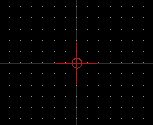
Cuando introducimos coordenadas absolutas de un punto en QCAD debemos especificar su coordenada X e Y separadas por una coma «,». Las coordenadas Cartesianas se escriben generalmente con el siguiente formato:
ordenada-x,ordenada-y
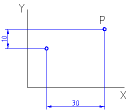
Por ejemplo la coordenadas 40,30 está localizada 40 unidades a la derecha y 30 unidades por encima del origen.
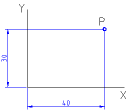
Las coordenadas cartesianas también pueden referenciarse desde una posición distinta a la del origen. En este caso hablamos de «coordenadas relativas». En QCAD se escriben con el siguiente formato:
@ordenada-x,ordenada-y
El mismo punto del ejemplo anterior relativo al punto (10,20) se expresará con @30,10.
Herramientas/Comandos
A continuación vamos a explicar sólo algunas de las herramientas/comandos de dibujo para la creación de entidades básicas para el diseño CAD, las más relevantes para el diseño de los componentes electrónicos, así como del robot DYOR. De entre todas las entidades, nosotros recomendamos el uso de polilíneas frente al uso de líneas, arcos, círculos, elipses, splines, formas poligonales, en la medida que sea posible, ya que la polilínea permitirá optimizar el trazado de láser, reduciendo así los tiempos de fabricación y por tanto los costes. Siempre podéis hacer el dibujo utilizando entidades sencillas (como líneas y arcos) y al final crear poliníneas a partir de segmentos existentes (existe una herramienta específica para ello).
Tanto desde el menú de herramientas, como desde la línea de comandos podéis crear entidades básicas para el diseño CAD. La mayoría de entidades, disponen de una barra de iconos específicos con variantes a las mismas que os permitirán crear entidades más avanzadas. El menú de iconos se encuentra justo debajo de la barra de iconos habitual.
Comandos básicos:
Aquí encontraréis un conjunto de comandos básicos para rehacer, deshacer, copiar, cortar y pegar. Esta parte es bastante intuitiva, con lo que no se incide más aquí.
Líneas:
Aquí encontraréis el conjunto de comandos para el manejo de líneas. Estos son los comandos más básicos para la creación de líneas:
line: dibuja una línea con dos puntos
lh,lv: dibuja una línea horizontal/vertical
rectangle: dibuja un rectángulo
polygon: dibuja un polígono con centro y lados
Arcos y círculos:
Aquí encontraréis el conjunto de comandos para el manejo de arcos, mientras que la documentación para el manejo de círculos la encontraréis aquí. En ocasiones debemos dibujar algún arco, por ejemplo para redondear alguna esquina o un círculo para hacer un orificio, para ello utilizaremos los siguientes comandos:
arc: Dibuja un arco a partir de 3 puntos
arcc: Dibuja un arco a partir de un punto, un centro y un ángulo.
circle: Dibuja un círculo a partir del centro y uno de sus puntos.
circlecr: Dibuja un círculo a partir del centro y su radio.
circle3p: Dibuja un círculo a partir de tres puntos.
Polilíneas:
Las polilíneas permiten combinar segmentos concatenados a partir de nodos. Los segmentos pueden ser líneas o arcos. El comando polyline permite crear una polilínea. Para cambiar un segmento del tipo línea a arco, existe una opción en la barra de iconos específica de la herramienta polilínea que os perimitirá indicar si queréis dibujar una línea o un arco.

Para crear una polilínea a partir de segmentos existentes debéis seleccionar el comando «Crear a partir de segmentos existentes» dentro de la herramienta de polilíneas. Seleccionamos un de los segmentos y la herramienta los concatenará aquellos segmentos contiguos creando una polilínea y eliminando los objetos originales. Veréis que antes de este procedimiento los objetos se podían seleccionar por separado, mientras que tras la polilínea, los objetos están unidos.

Desafortunadamente esta es una herramienta avanzada y sólo se puede utilizar durante los primeros 15 minutos de la aplicación. Si necesitáis hacer este paso, debéis cerrar la aplicación, volverla a abrir y proceder a crear la polilínea y guardar los resultados.
[:en]In this entry, we will show how to use some of the basic features of QCAD in order to create 2D designs which can be used for laser cutting.
Introduction
QCAD is a CAD (Computed Aided Design) software which includes a menu bar on top with an icon bar just below the menu bar. On the left there’s a toolbox and a set of property windows on the right. The console for introducing commands is just below an the design area is in the center of all.

Reference manual
This entry is not intended to be a complete reference manual for QCAD. The best place to get some information can be found in https://www.ribbonsoft.com/en/qcad-documentation with the latest features and also the reference manual.
Layers
Every CAD design is organized in layers. Layers allow us to organize information with different properties and they can be easily activated/deactivated. In the property window, there’s a window with the layers information. By default, QCAD always has the 0 layer, but we can add more. In particular, since this entry is oriented to serve as a basis for designing 2d drawings for laser cutting, we can use the standard template for laser cutting or create our own layers and assign a different color for each layer as shown:

Coordinate system
QCAD includes a 2D Cartesian coordinate system with absolute and relative values. All absolute values are referred to the drawing origin shon in the following image:
If we want to introduce an absolute coordinate in QCAD, we must indicate the X and Y coordinates separated with a colon «,». They are usually written with the following notation in the console:
coordinate-x,coordinate-y
For instance, coordinate (40,30) is located 40 units to the right of the origin and 30 units above the origin.
Cartesian coordinates can be also be referred to be relative to some specific point, different from the origin, which can be specified in the console with the following command:
@coordinate-x,coordinate-y
The point (40,30) relative to the point (10,20) can be expressed as @30,10.
Toolbox
Here we will explain some few commands which will help us to generate basic designs in QCAD. For lasser cutting it is highly recommended the use of polylines against line segments, arc segments, circles, ellipses, splines or any other curve, because the laser cutting machine can generally manufacture pieces much faster implemented with polylines than with the other curves. The reason it is very simple, polylines are indeed an ordered list of line segments and arc segments, which implies a contour which will also represent a continuous cutting (without «jumps» from one place to another). If two separate lines have a common point at their ends, they can be transformed into a polyline. In a similar case, if a line is contiguous to an arc segment, then both entities can be transformed into a polyline.
Therefore, it is very recommended that once the design is done, to transform all possible individual line segments or arc segments into polylines so that work time during cutting is reduced.
Most of icons that you will find in the toolbox, will be self-explanatory with the requested info at the console. For instance, when drawing an arc segment, there’s one icon related with creating it using three points. The console asks about introducing or selecting each of the points.
Basic commands:
Here you will find a set of basic commands such as redo, undo, copy, cut and paste. This is very intuitive so there’s no need for extra explanation.
Lines:
The most common type of lines are simple line segments, horizontal and vertical lines, rectangles or polygons:
line: draws a line with two points
lh,lv: draws a horizontal/vertical line
rectangle: draws a rectangle
polygon: draws a polygon with a center and a given number of sides
Arc segments and circles:
There are two main methods to create an arc segment and three different type of methods for creating a circle:
arc: Draws an arc segment from three points
arcc: Draws an arc segment with a point, centre and angle
circle: Draws a circle with a centre and one point.
circlecr: Draws a circle with a centre and radius.
circle3p: Draws a circle from three points
Polylines:
Polylines can combine line or arc segments. In order to change from a line segment to an arc segment, there’s a specific icon at the icon bar that will allow you to select the proper option.

Also, we can create a polyline form a selection of line and arc segments. In the toolbox, there’s an icon for «Create from segments»
that will allow you to select one entity and the ones (arc segments or line segments) which are continguous to each other will be removed and transformed into a polyline. Unfortunately, this is an advanced feature that it is only possible to use in the pro-version, which implies that the feature will be active for the first 15 minutes. In order to restart this timer, we can reboot our system, but in the end, there’s a limitation on the times the application is launch.
Modify menu:
The modify menu contains several tools that can be very useful if properly used. For instance, we can generate transformations such as rotation, translation, scaling and mirroring:

Another utility could be trimming, lengthen or shorten some entities. Trim implies that one entity will be trimmed (reduced) to the intersection point with another entity, while lengthen and shorten can extend or reduce the length of a given entity with a given amount (specified in the icon bar).

Another important utility, will be the «Divide» and «Break out». With the divide tool, we can divide an entity at the specified point, in many cases with similar results as the trim command. The break out tool will introduce a small gap, let’s say 1mm, which can be specified in the icon bar, with the idea to break out an entity into two separate entities with a gap. The break out is very convinient in laser cutting when we want to have two parts which can be easily separated but kept joint for manufacturing purposes.
 [:]
[:]